
Image editing
FLUX 3 Klein Image Editor
FLUX 3 Klein is a text-to-image model and an image editor in one. Attach a photo and describe what should change, or attach two or three photos and say which object goes where. Below are four edits made with this site's model, followed by the rules that keep the result under control.
In the generator you can attach up to 3 photos and name them <ref_image_1>…<ref_image_3> to say what goes where.
This box opens the generator with FLUX 3 Klein. The reference slot is where edits start: attach up to three photos and describe the finished image.
Four edits, before and after
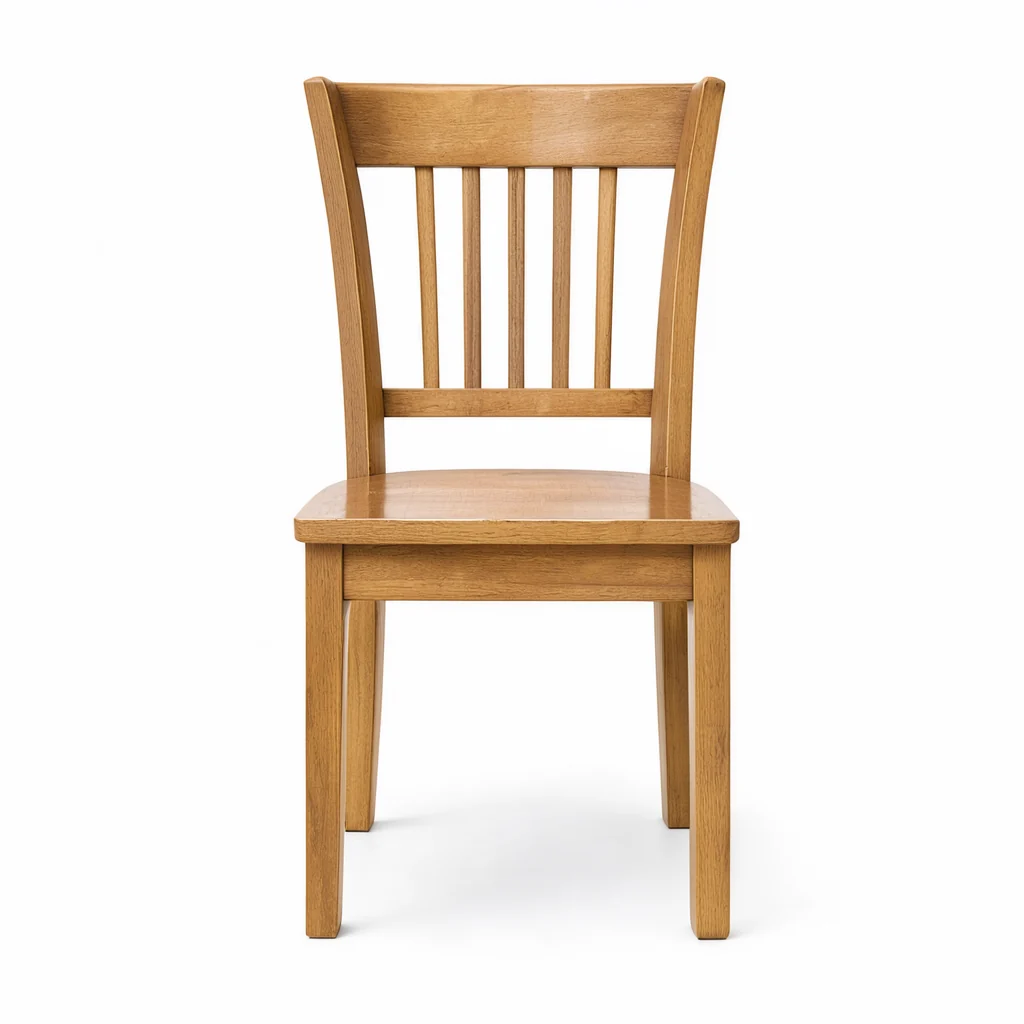
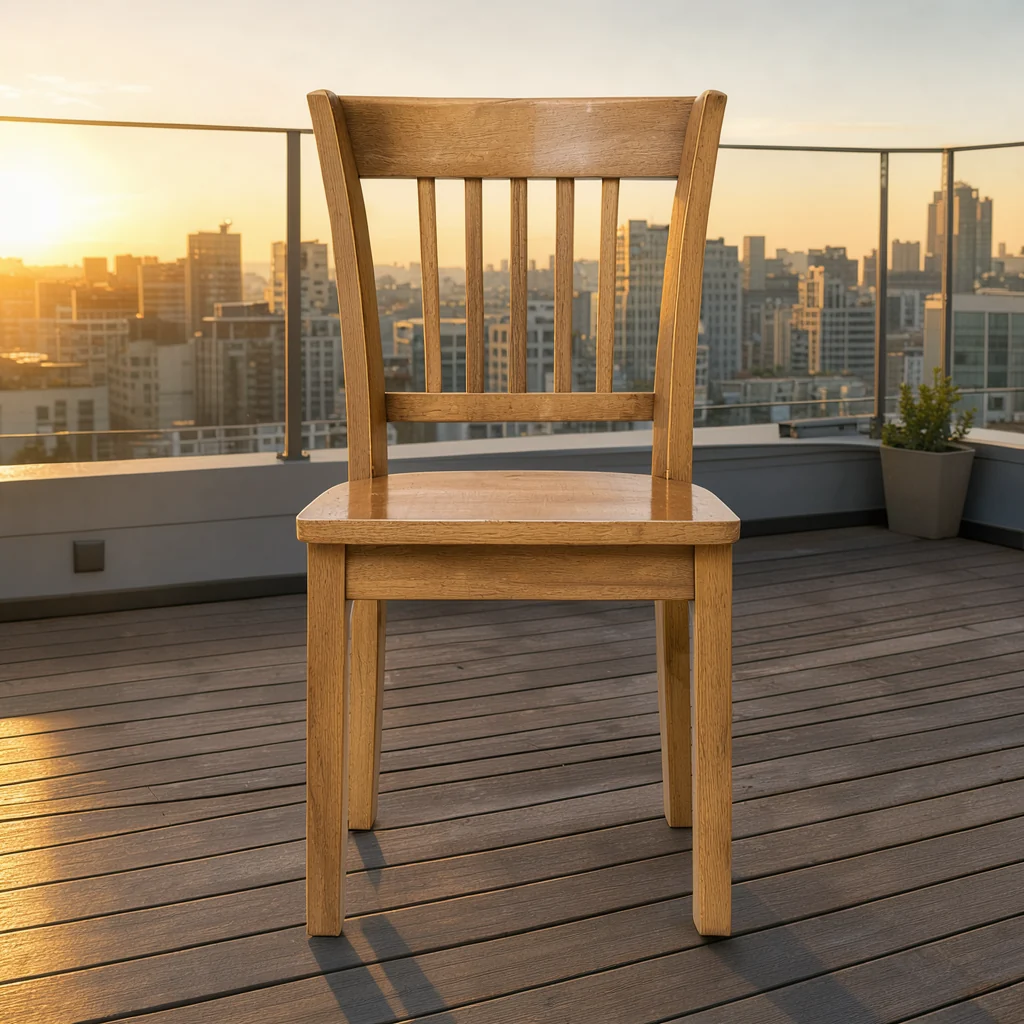
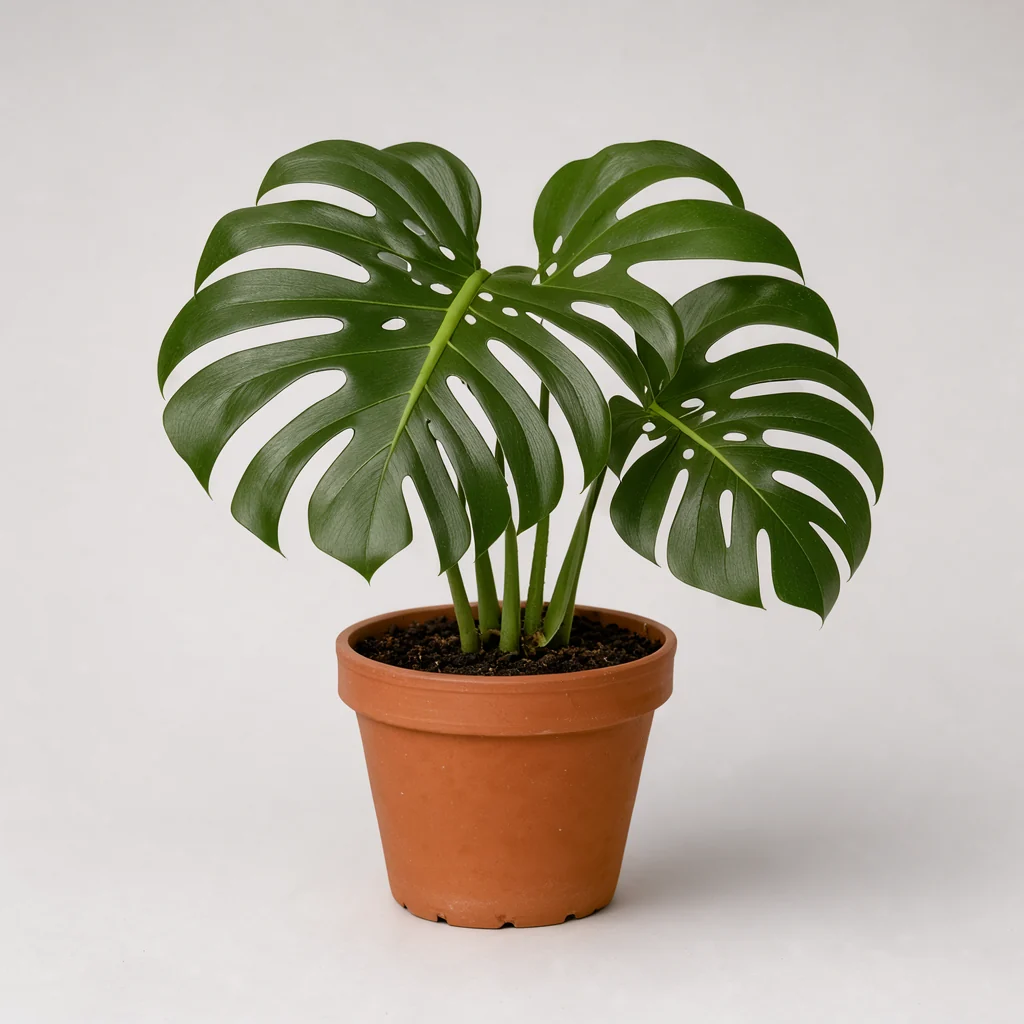
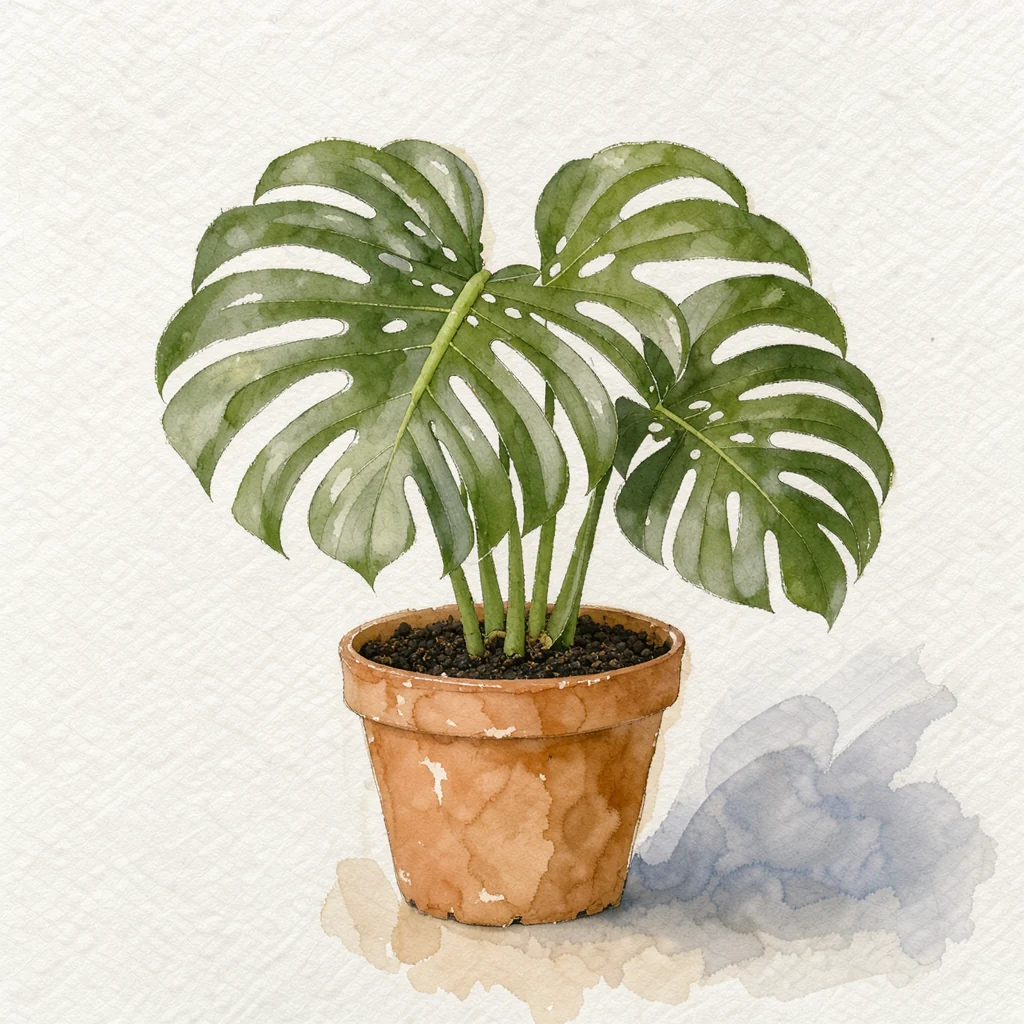
Every pair below was made on this site with FLUX 3 Klein at 1K, 1:1. The left half is the reference that shows the starting scene; the right half is the single edited output. The prompt under each pair is the exact instruction the model received — none of them says "improve".
 Before
 After
AfterReplace the background
One reference. The chair is lifted out of the white studio and set on a rooftop terrace at golden hour. The prompt names the chair's shape, wood colour and proportions as things that must not change.
Place the chair from the first reference image on a rooftop terrace at golden hour, wooden decking, city skyline behind, warm side light from the left, keep the chair's shape, wood colour and proportions unchanged.
 Before
 After
AfterRestyle a photograph
One reference. The studio photo of a potted monstera becomes a watercolour on textured paper. Naming the palette and the brush texture works better than naming a painter.
Restyle the photograph of the potted plant from the first reference image as a watercolour painting on textured paper, soft washes and visible brush strokes, keep the plant's shape, the pot and the framing unchanged.
 Before
 After
AfterCombine two photos
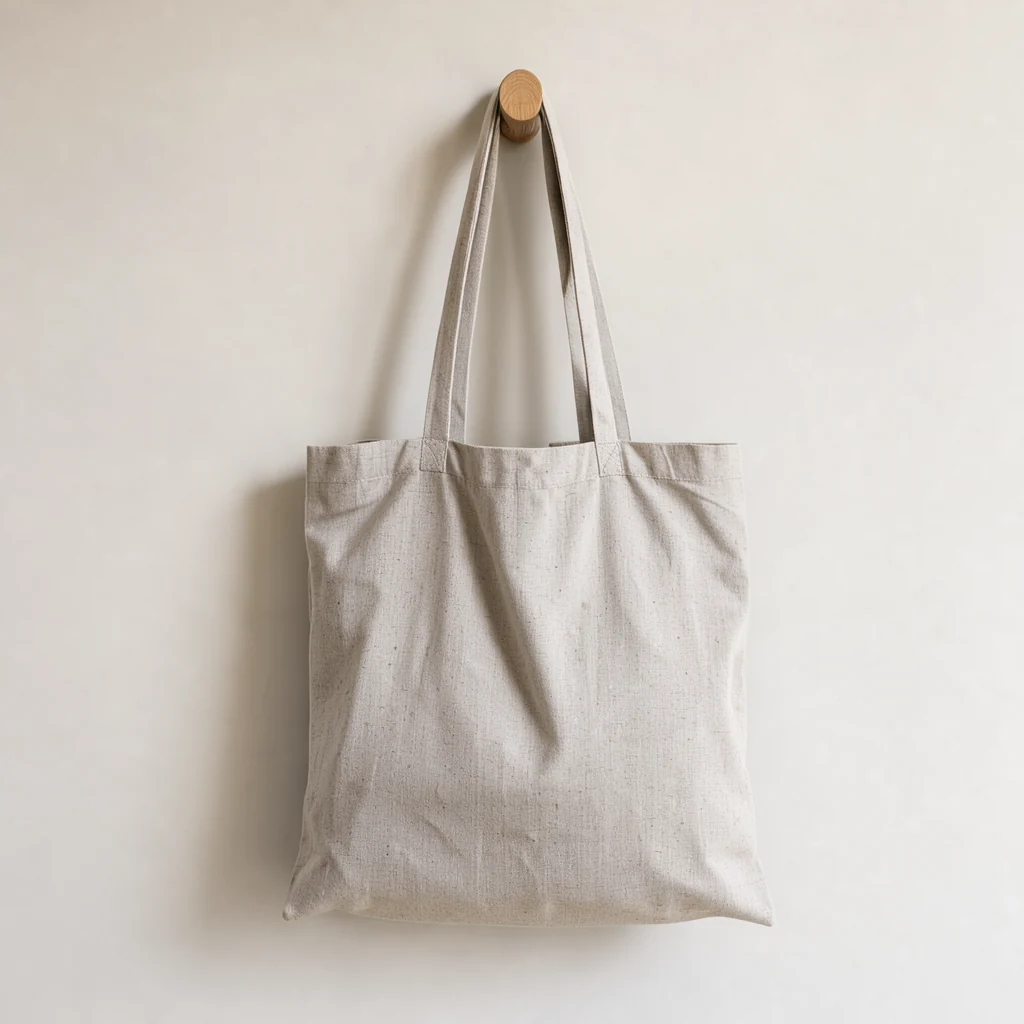
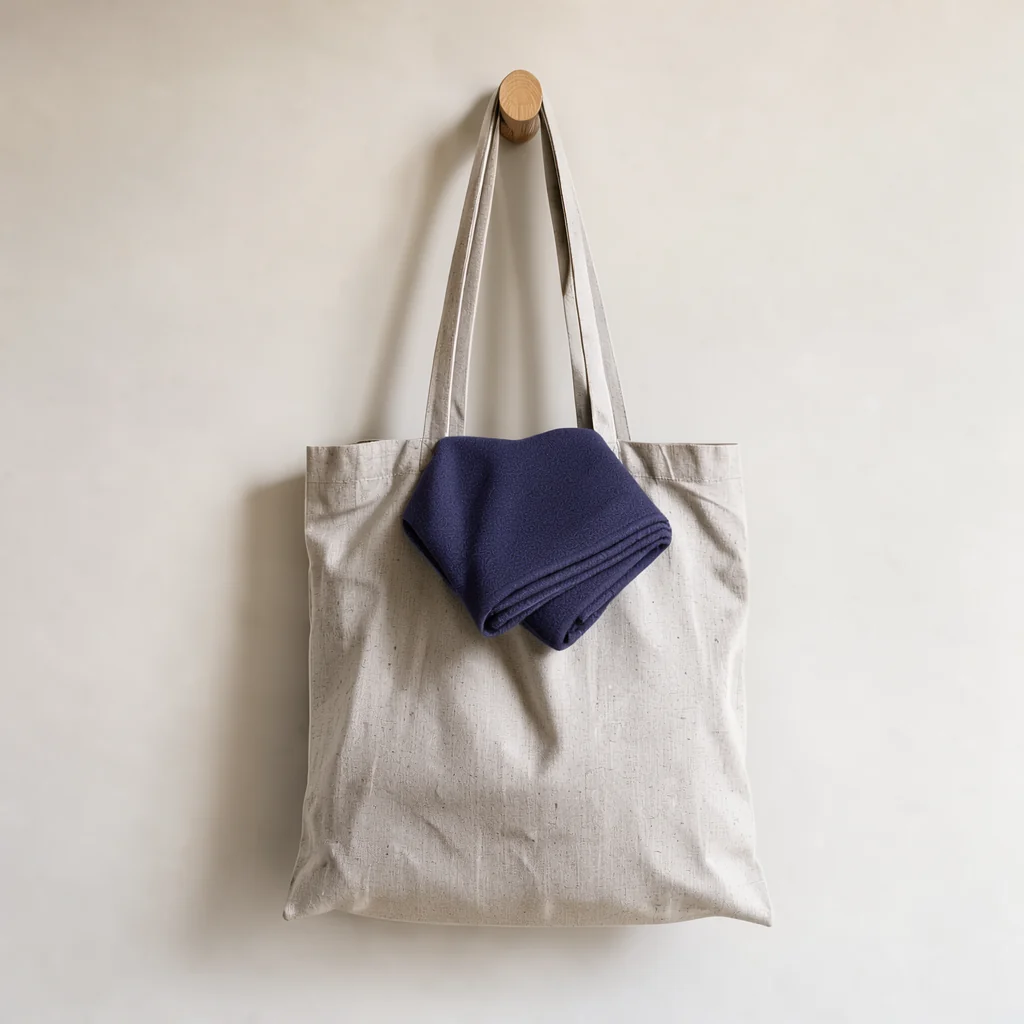
Two references. The scarf from the first is placed inside the tote bag from the second, draping over the front edge. Both references are addressed by their position in the prompt — the first reference image, the second reference image.
Place the scarf from the first reference image inside the tote bag in the second reference image so it drapes over the front edge, keep the bag's shape, colour, the peg and the light unchanged.
 Before
 After
AfterPlace three references on one surface
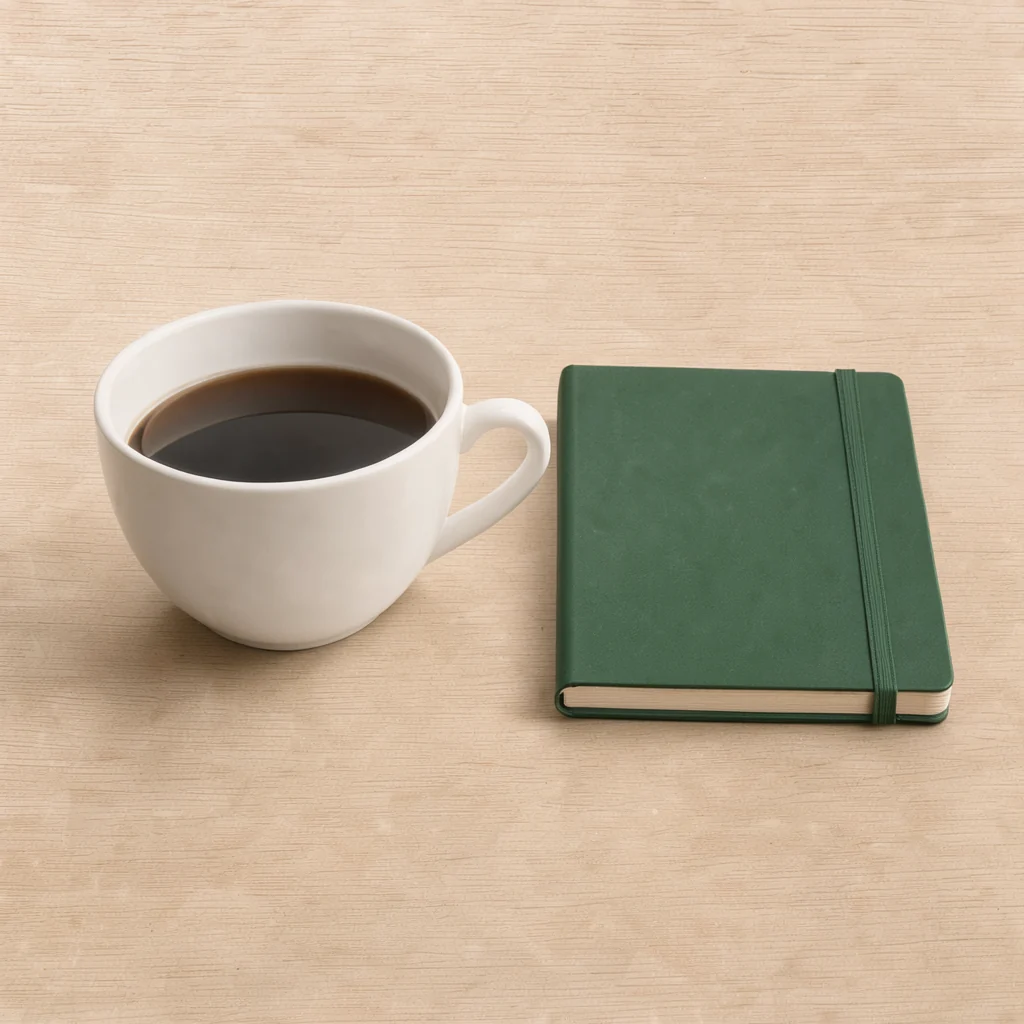
Three references. The cup and the notebook are arranged on the empty oak table; the prompt says which goes left and which goes right, and asks for contact shadows so the objects sit on the surface instead of floating.
Arrange the cup from the first reference image on the left of the table in the third reference image, and place the notebook from the second reference image on the right, keep all three objects' shapes, colours and the lighting unchanged, add soft contact shadows.
How to write an edit that lands
Four habits that change the result more than any setting on the page.
Describe the finished image, not the change
Write a full caption of the picture you want, with the edit already folded in. "Place the chair from the first reference on a rooftop terrace at golden hour" works; "change the background" does not.
Number the references in your own words
References are addressed by order — the first reference image, the second reference image. On this site you can also write <ref_image_1> to <ref_image_3>. Use whichever you find clearer and keep the same wording throughout the prompt.
Say what must stay the same
Add one clause listing what cannot move: the table, the light, the shadows, the product's colour or its label. Without it the model is free to redraw the parts you cared about.
Change one thing at a time
Run the edit, look at the result, then run the next edit on that output as a new reference. Stacking five changes in one instruction makes it hard to tell which one broke the image.
What the online editor can and cannot do
This site runs FLUX 3 Klein, and only FLUX 3 Klein. The open-weights model is more capable in two specific ways that are not part of this site.
One to three reference images
The generator accepts up to three attached images per generation. That covers background swaps, single-image restyles, and combining two or three objects.
Named placement in the prompt
Refer to each attachment as <ref_image_1>, <ref_image_2> or <ref_image_3> and say where it belongs, such as "place the bottle from <ref_image_2> on the left of the counter in <ref_image_1>".
1K and 2K output
Choose 1K or 2K and one of fifteen aspect ratios from 1:1 to 21:9; download as JPEG, PNG or WebP.
Not part of this site
Ten reference images, bounding boxes, 4K output, LoRA training and weight downloads are features of the open-weights model, not of this online version. They are not planned here either — this page lists what exists today.
Editing costs more than generating
Editing is charged per generation: 4, 5 or 6 credits at 1K with one, two or three references, and 13, 15 or 17 at 2K. Text-to-image is 2 credits at 1K and 8 at 2K.
Ten languages
The generator, this page and every help page are available in English, Chinese, Russian, German, French, Japanese, Korean, Spanish, Portuguese and Turkish.
Editing with FLUX 3 Klein
Can I edit a photo I already have?
Yes. Attach it in the generator and describe the finished picture. The same model that generates images from text switches to editing as soon as a reference is attached, so there is no separate edit mode to find.
How many reference images can I attach?
Three per generation on this site. Black Forest Labs' own model accepts up to ten; the online version here stops at three.
Why did my edit change parts I wanted to keep?
Short instructions leave the model free to redraw the whole frame. Write the instruction as a full description of the result, add a clause naming what must not change, and change one thing at a time.
Can I combine objects from more than one photo?
Yes, with up to three references. Number them in the prompt — <ref_image_1> to <ref_image_3> — and state which object goes where, plus what should stay untouched.
Edit your own photo
Attach one to three images, describe the finished picture, and compare the result in the same box.